


Office 365 is a popular and reliable platform of many organizations, but handling data online require permanent internet access. When user want to access their account offline mode or different email client like Outlook classic, Thunderbird, Apple Mail etc. then conversion is the most important step.
Microsoft understood the company/enterprise requirement therefore eDiscovery method is available to manually transfer data from Office 365 account to PST format.
However, following complete manual way is bit technical and required some PowerShell command to download Microsoft 365 mailbox in PST format. And if your target to open data into Thunderbird, Apple Mail or other desktop client then this method is not working for you. In such cases, organizations use professional office 365 backup software that allowing exporting data into PST, EML, MBOX and other file formats.
Ways to export Microsoft 365/Office 365 mailbox data to PST/MBOX/EML
Any size of organization or brand follow these methods to access online Exchange data in desktop clients.
Outlook syncing: You can add the Microsoft 365 mailbox to Outlook and use File → Open & Export → Import/Export → Export to a file → Outlook Data File (.pst).
eDiscovery tool: This is the main Microsoft 365 admin/compliance-based method. You create a search in eDiscovery and export the mailbox search results as PST.
After manually exporting data in PST, user can use dedicated software to change PST to MBOX, and EML file format.
Third-party software: Specialized migration/backup applications (like MailsDaddy Office 365 Backup Tool) can connect to Microsoft 365 and export mailbox data directly to PST, MBOX, EML and MSG format.
Pre-requisites for Manual Office 365 to PST Export
Before proceeding with the manual export, make sure you have the following:
eDiscovery access: You must have access to the eDiscovery tool with the required Administrator or Manager permissions.
Permission: You need an account with the appropriate Microsoft 365/Exchange permissions to perform the specific PowerShell operation; it doesn’t necessarily have to be a Global Administrator.
Sufficient storage space: Make sure your local drive has enough free space to store the PST files containing data from all or selected users.
Outlook Classic Syncing Process
A familiar user with Microsoft apps and services always choose Outlook classic option to manage data locally. Ensure your account is active and have requirement permissions.
To sync Microsoft 365 data to Outlook:
- Open Outlook classic > Type Microsoft 365 account detail. If you have already use any account with Outlook, then first create a new profile then configure account.
- Click on configure manually
- Choose Office 365 setup option
- Authenticate your account with credential and MFA
- Once it is successfully done then wait for syncing process.
Note: If you are facing any error then you have resolve this first.
eDiscovery Tool to Export Microsoft 365 to PST format
The Outlook synchronization process works well for an individual user, but organizations or businesses deal with numerous accounts and users. Therefore, the eDiscovery method is the best and most effective approach for accessing emails within PST files.
Before proceeding, ensure that you have expert help or complete technical knowledge to perform this method safely and securely.
For more information: eDiscovery tool to export Microsoft 365 to PST
Exporting Steps:
- Login to Microsoft purview portal
- Go to settings > Roles & Scopes > Role Groups
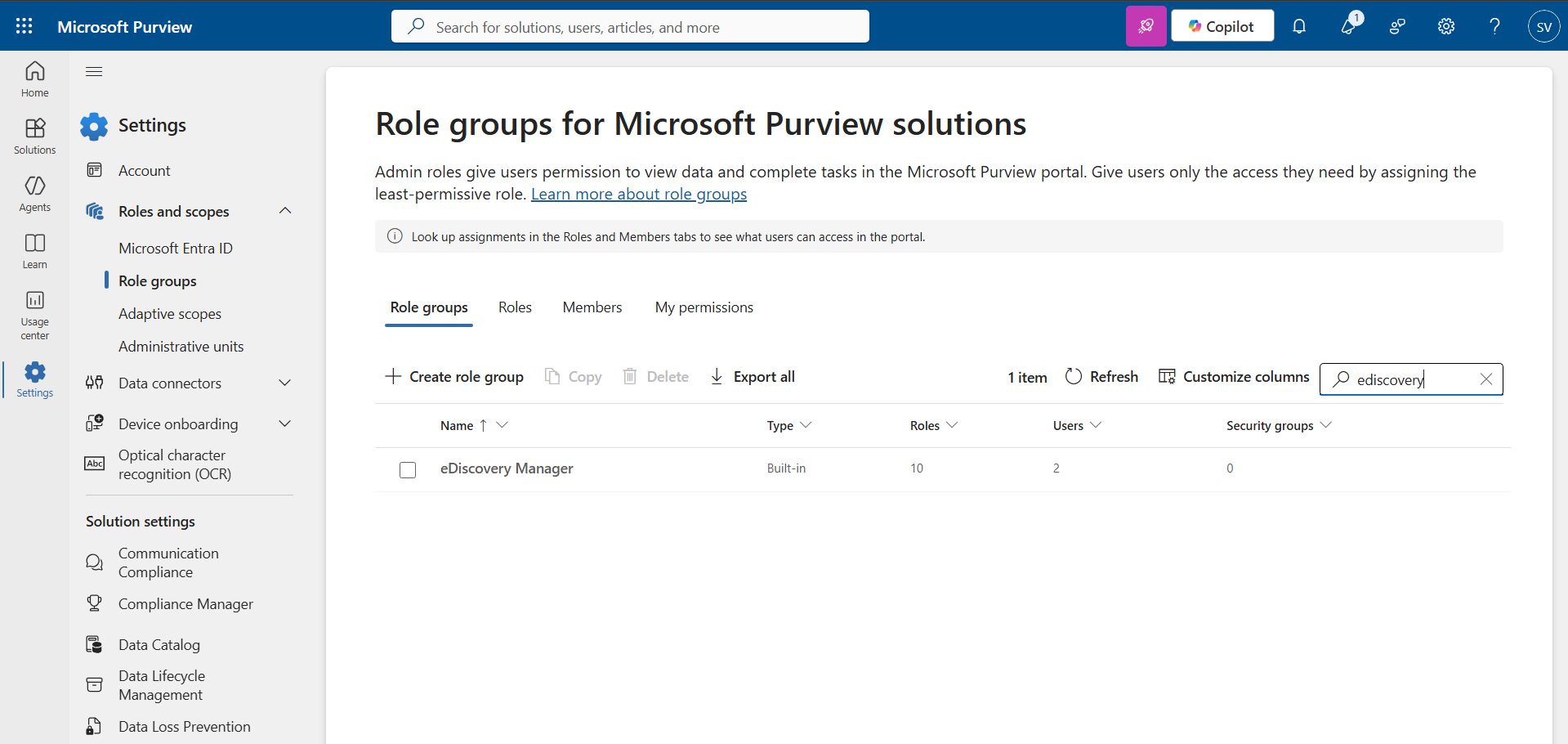
- Search eDiscovery Manager > Edit
- Add user in Administrator and Manager
- Review and save.
- Go to solutions
- Click eDiscovery Manager
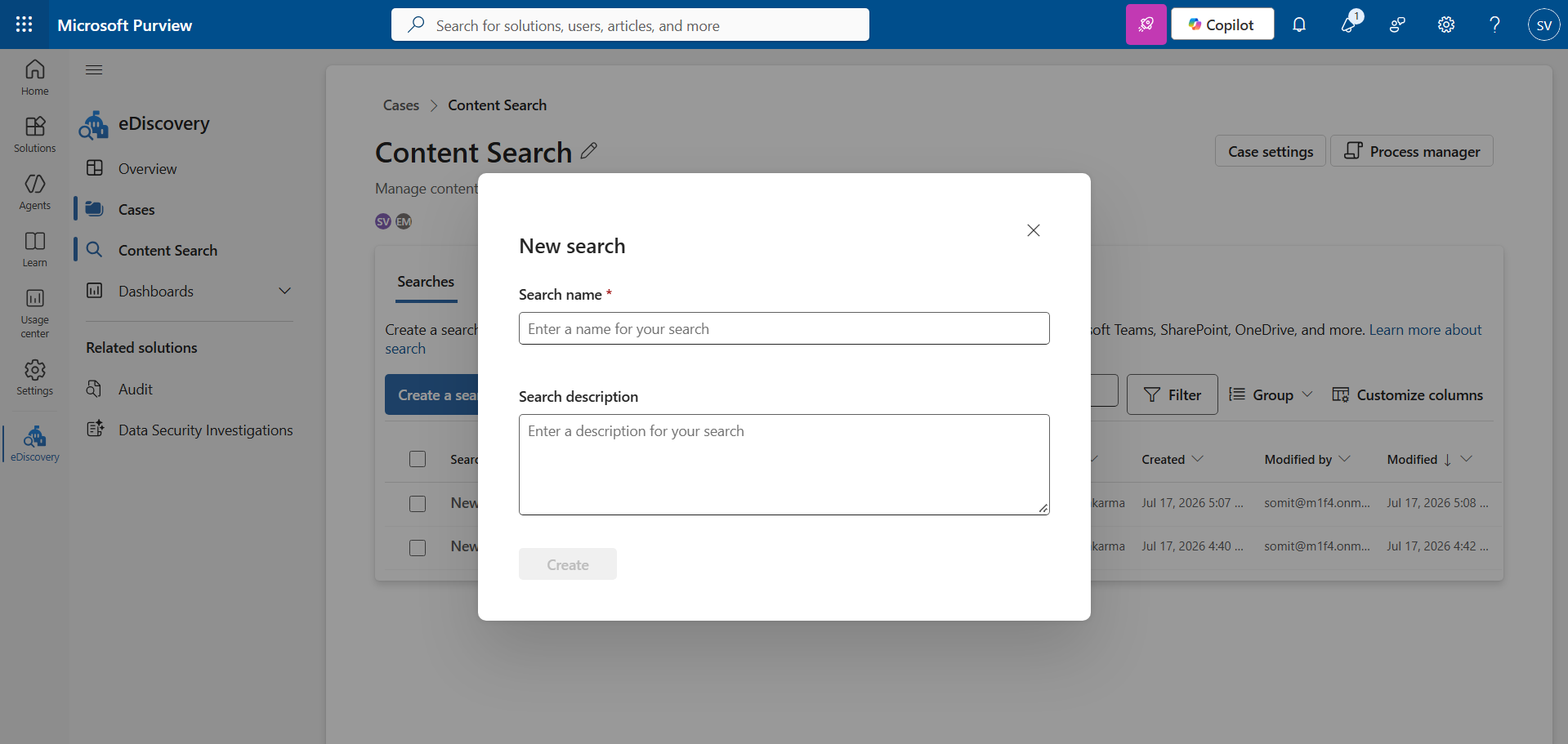
- Open Content search > Create new search
- Give a name and click Create
- Add source account (all or required users) and click on Manage.
- Choose mailboxes then Save.
- Go to export then type name and hit on Export button to start process.
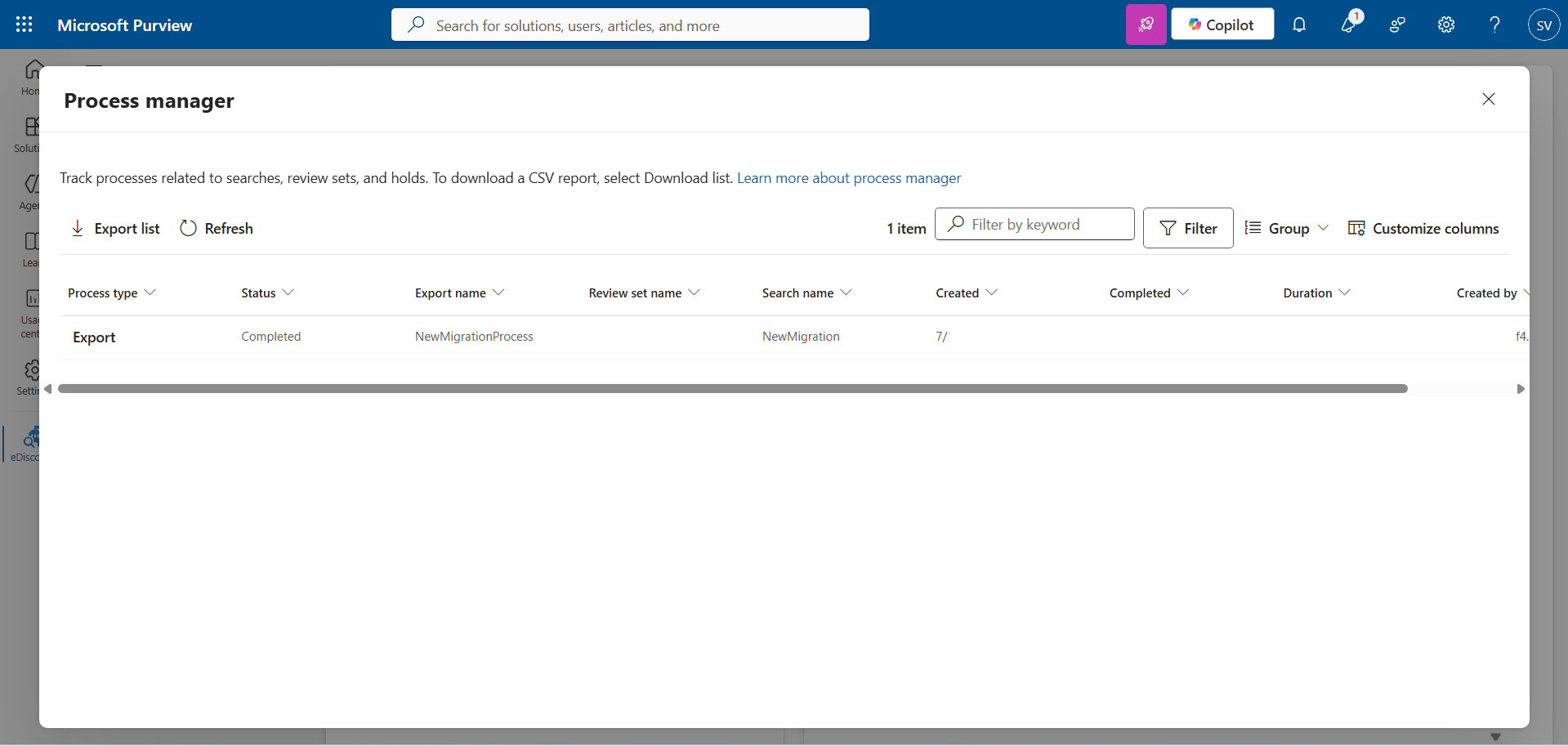
- Now it will take some time to generate download button. Until then you can track progress by visiting process manager option.
Third-party tool to download Office 365 data to PST, EML, or MBOX
Manual method works when you have a knowledge but it you are a newbie or nontechnical person then a powerful or reliable solution is required.
Most MVPs and Professional user trust MailsDaddy Office 365 Backup tool to convert Microsoft data to PST, EML, MSG and MBOX file in a single operation. The application posses with many advance features and filters to transfer all and selected user data to MBOX, PST, and others.
Steps to transfer M365 mailbox to PST
- Download and install MailsDaddy Office 365 backup software
- Run the application and click on connection tab.
- Create new connection with administrator credentials.
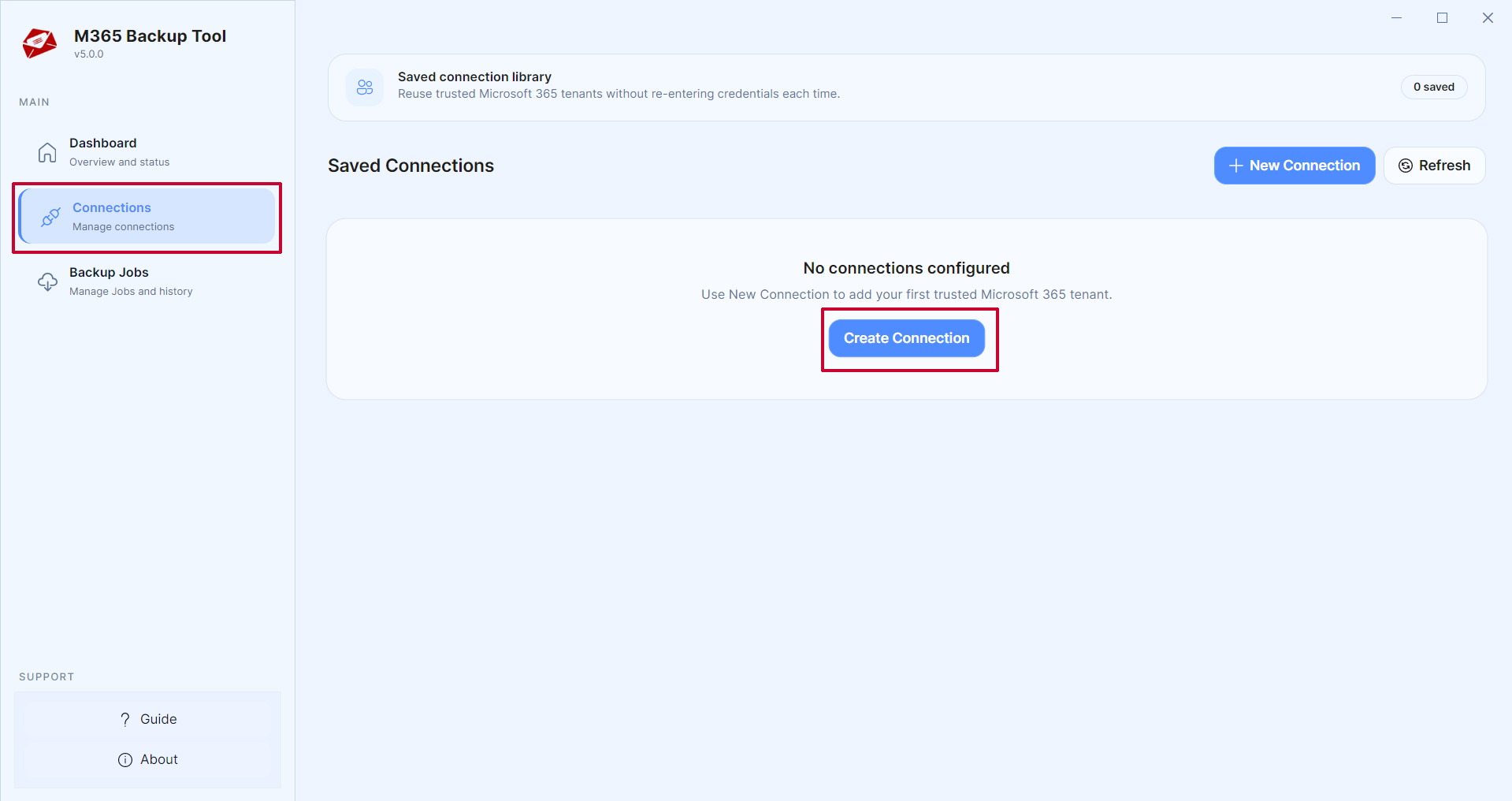
- Authenticate account and click continue
- Go to Job tab
- Create Job
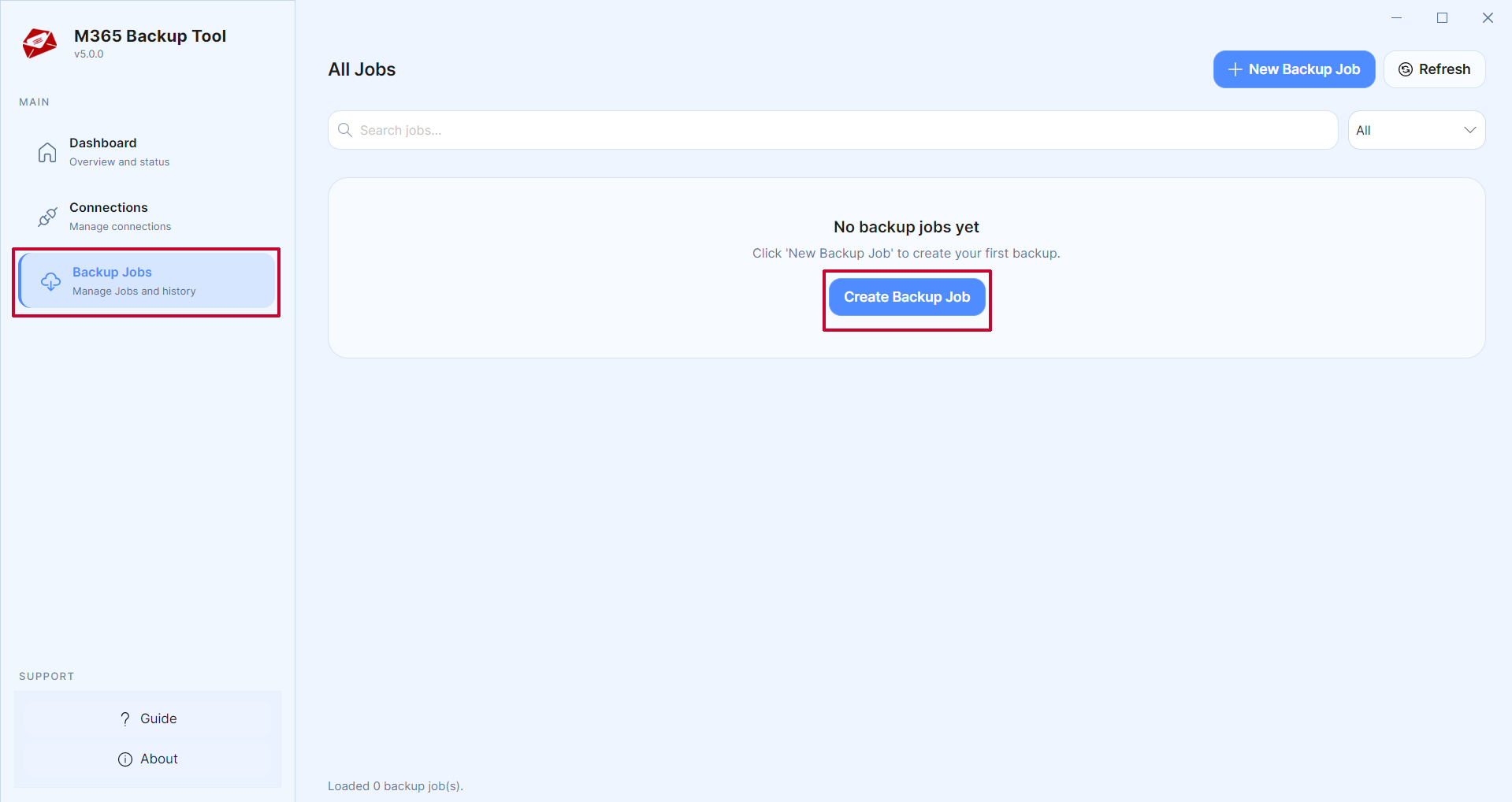
- Select account > select mailbox: Primary, In-place archive, shared or group mailbox.
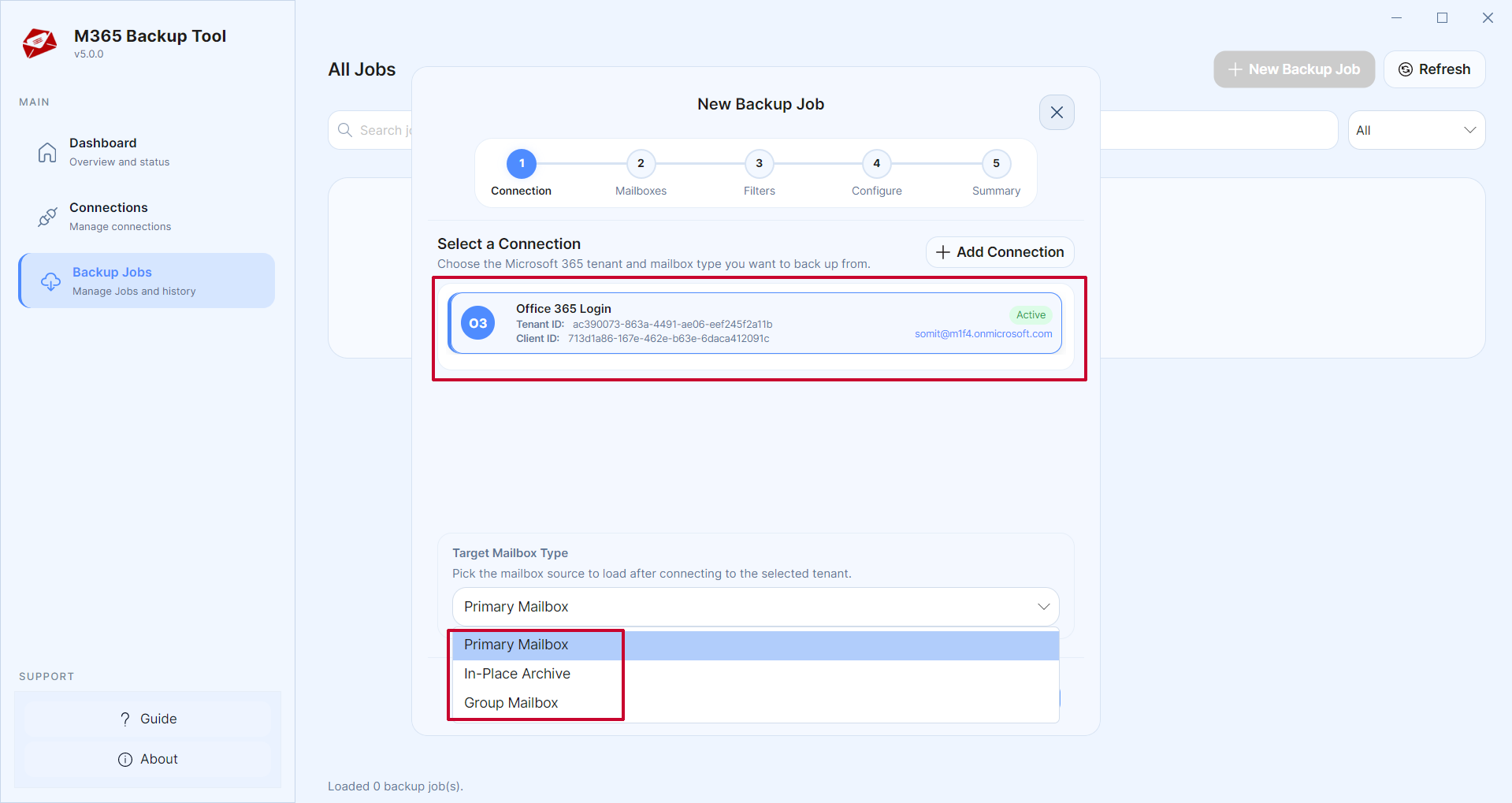
- Select all or required users, Next
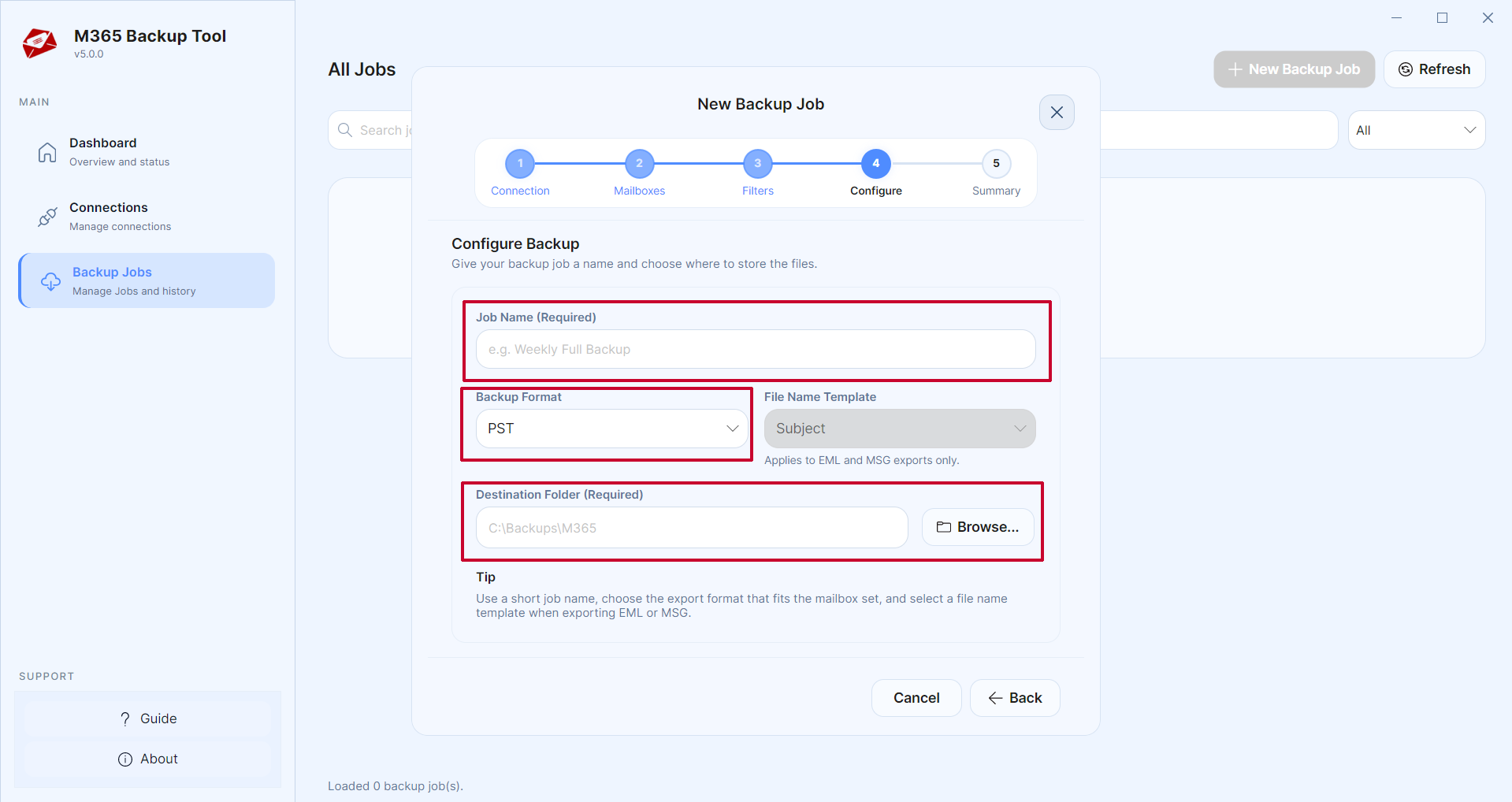
- Chose file format (PST/MBOX/EML/MSG), exclude folder (optional), use filters and save the location.
- Review the details then Next
- When job is created, click on Start button to run the job.
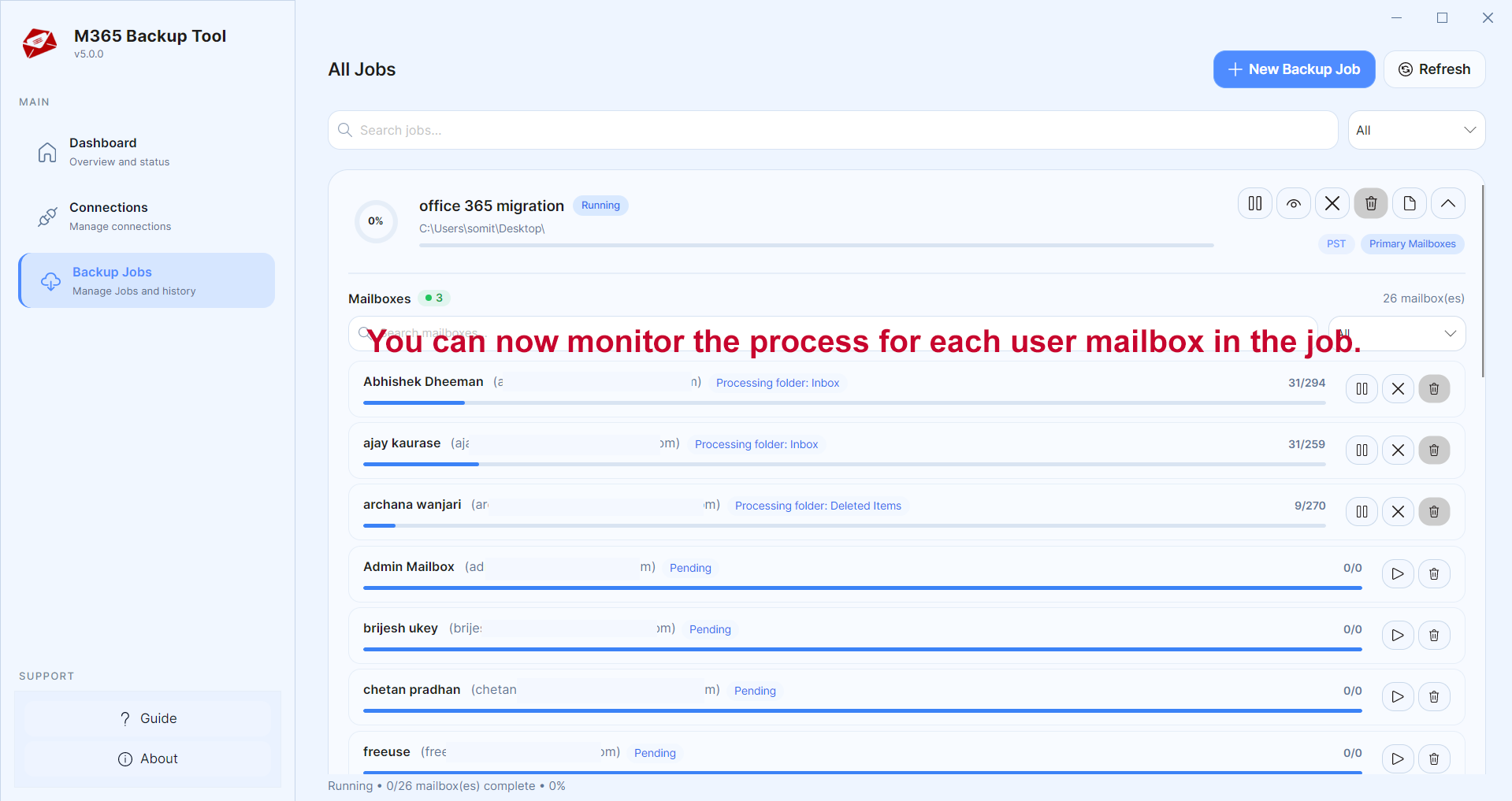
Now, wait a few minutes to execute the migration simultaneously for all users.
With this solution, organizations can easily download primary, archive, shared and group mailbox data to local drive at once. It supports all Windows operating system, and the free demo edition of the solution move few items from each folder.
Conclusion
In this guide, I have clearly explained both the manual and automated processes for transferring Microsoft 365 data to PST format. While the manual method is quite complex, it can be completed if you have the necessary information. If your goal is to obtain MBOX, EML, or MSG files, I recommend using a professional Office 365 backup tool; this is because, even if you use the manual method, you would still need another solution or method to convert PST file into MBOX format.